
Where best to start? A starting guide...
After setup, you'll see your dashboard with:
Status Cards at the top showing compliance progress
Workflows panel (left) showing your Re-registration Process
Tasks panel (right) showing what needs to be done
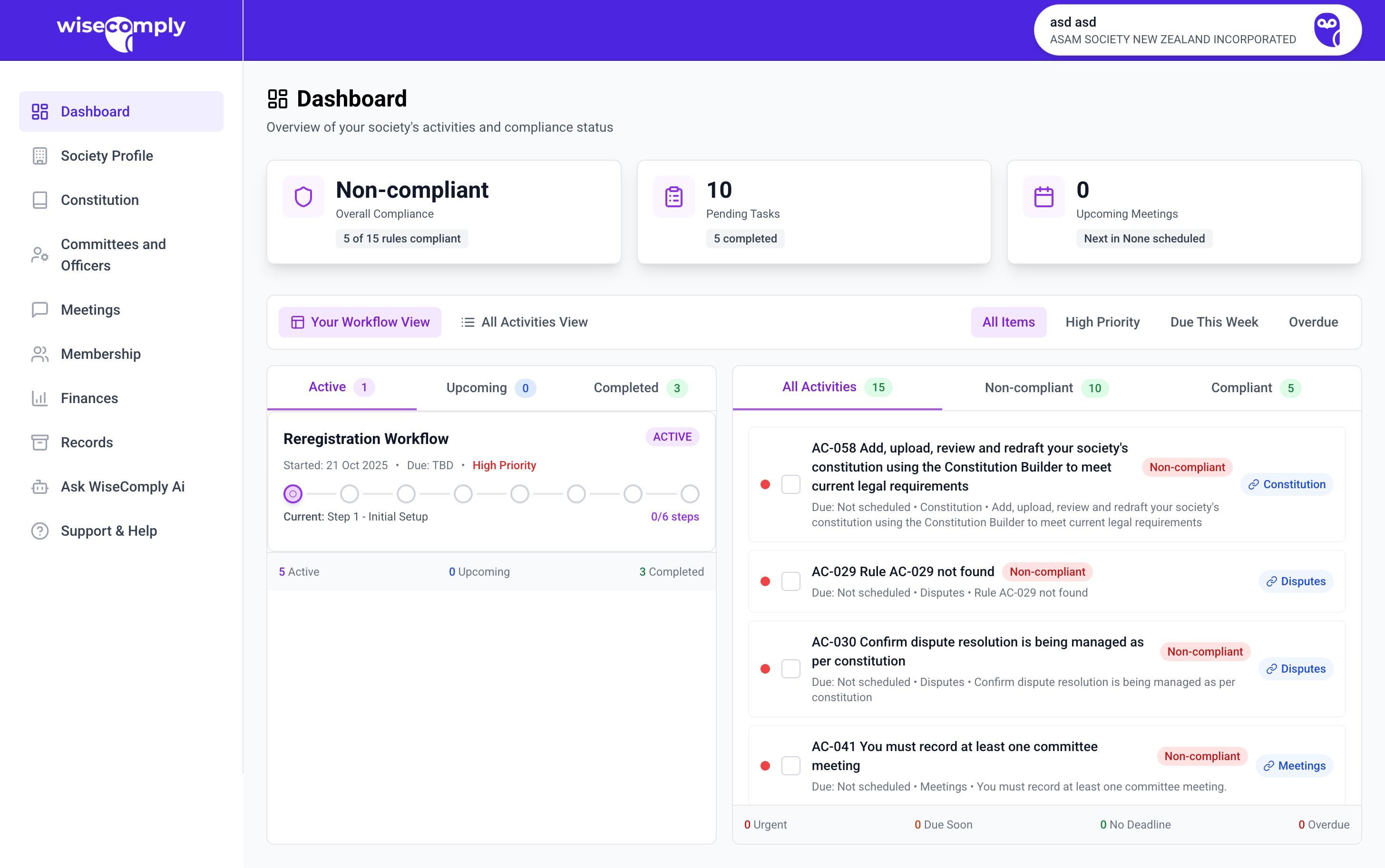
Don't panic if you see many tasks! They're organised systematically to guide you through.
Take a breath and look around. You’ll see:
• Status cards at the top showing your overall compliance progress
• Workflows on the left (the big processes you need to complete)
• Tasks on the right (the individual to-do items)
Don’t worry if you have non-compliant tasks - they’re organised to help you work through them.
Do Your Quick Wins
Complete these four simple tasks to build momentum:
• Add a contact person (name, email, phone)
• Confirm your registered office address
• Add one officer to the officer register
• Schedule your next AGM
Plan Your Approach
Understand what needs to happen next to bring up your compliance score. You know your committee best - talk to your them about who’ll handle what, and what is most important to tackle first.
1. Start with the Society Profile page

Click Society Profile in the left menu and the Society Profile Page will open.
Add contact person(s):
Click "+ Add Contact"
Enter name, email, phone
Save (these can be officers or administrators)
In the "Society Details" card, add or confirm registered office address and communication address by clicking Edit Details and finding the field you want to update.
2. Move onto Finance details
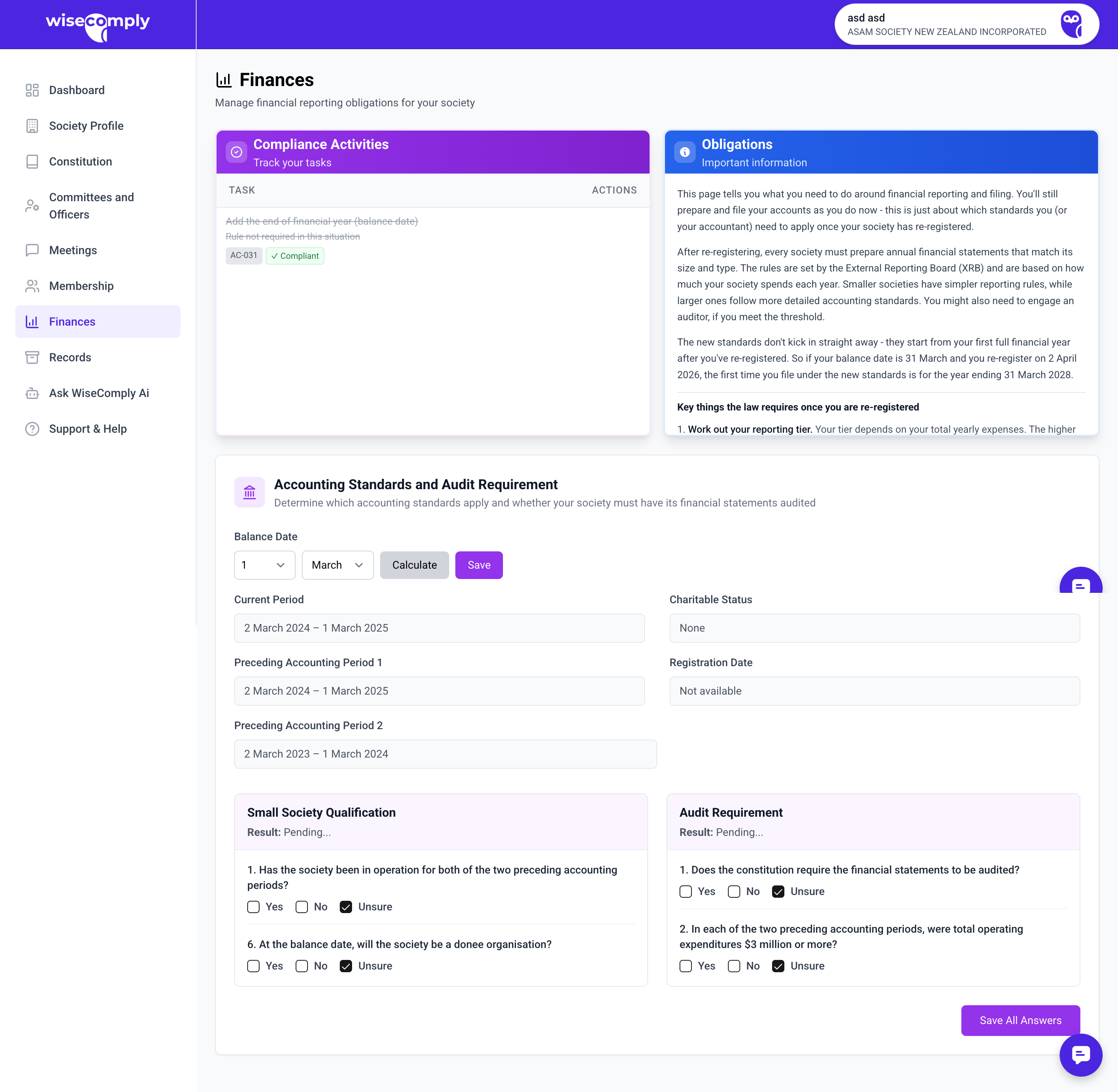
Next, click on Finances in the left menu and the Finance page will open.
Confirm your balance date, and amend if needed.
Next, scroll down and answer the questions in the Small Society Qualification and Audit Requirement cards. They help define your society size and audit requirements. If that's done, you're done with the Finance page for a while.
3. Move onto Committees and Officers
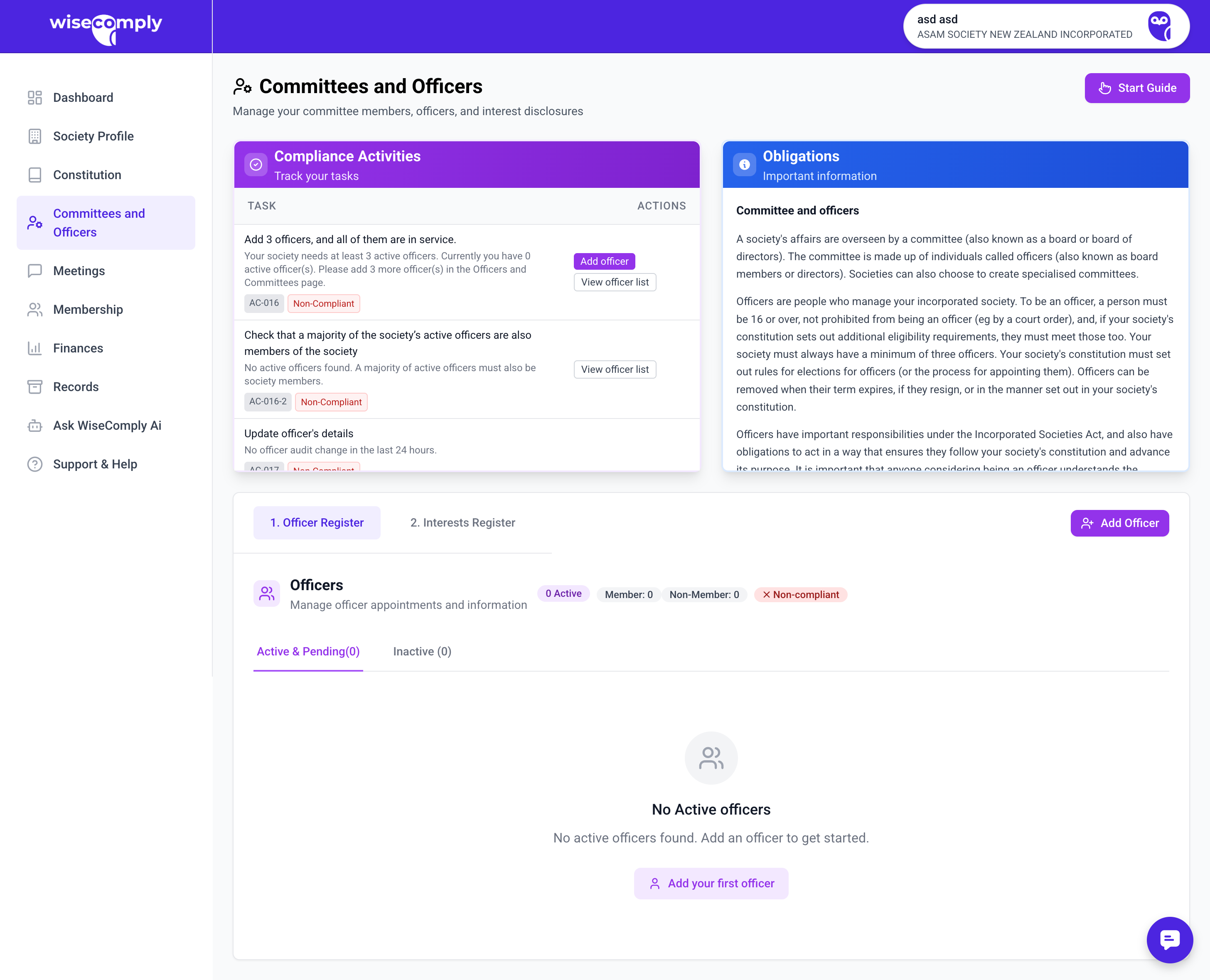
Click Committees and Officers in the left menu
Click Officer Register
For each officer (minimum 3 required):
Click "+ Add Officer"
Enter name, physical address, email, phone
Select role (Chairperson, Secretary, Treasurer, Committee Member)
Enter start date
Upload or record written consent
Confirm they've certified they're not disqualified
4. Move onto Membership
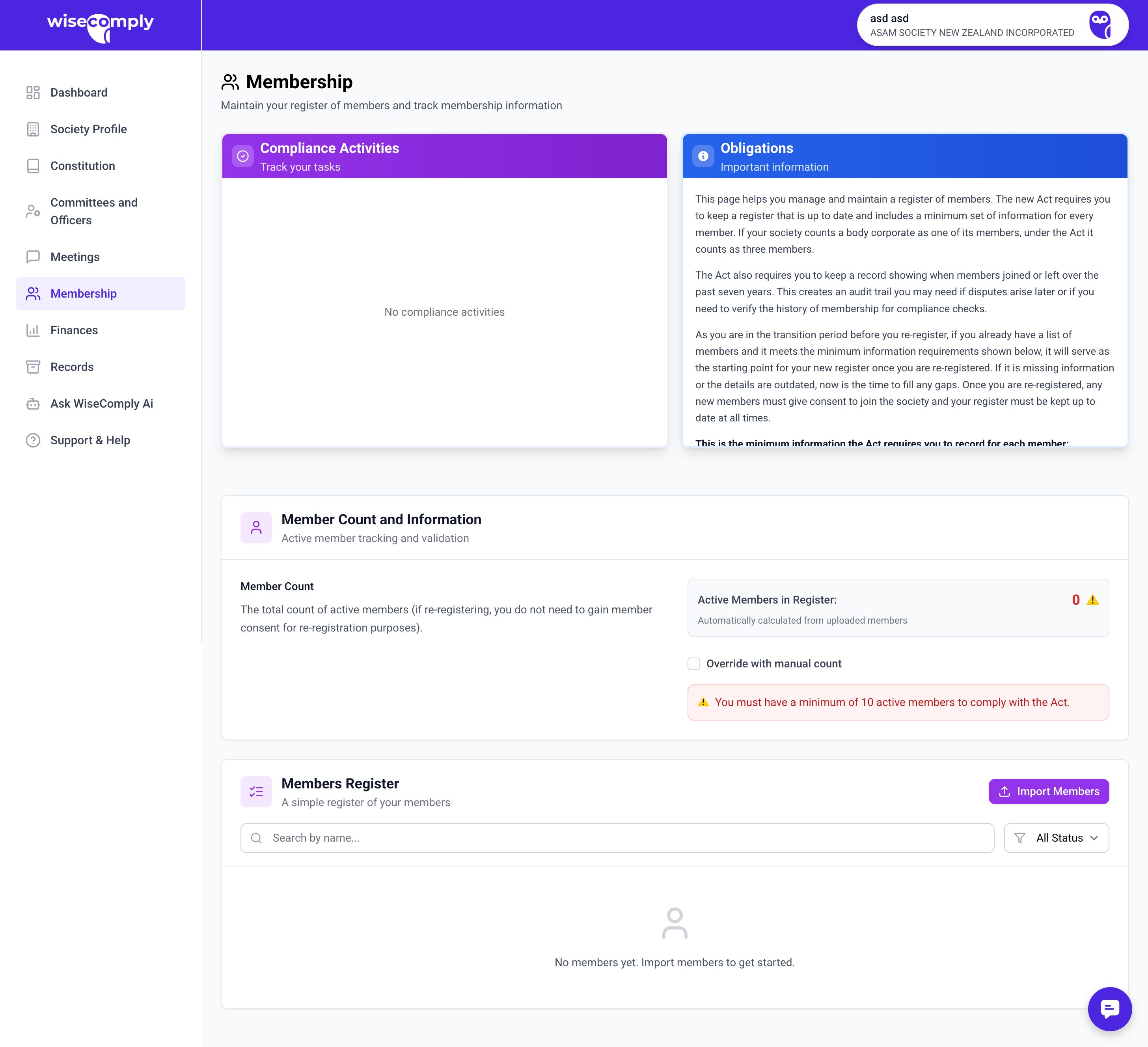
Click Membership and the membership page will open.
It's on this page you can either upload a membership list into the platform by clicking Import Members or just confirm the number of members you have (if you have a registry or list elsewhere).
If you want to simply record the number of members you have without uploading a list, click on the 'Override with manual count' checkbox, and enter the number of members.