
Getting Started 101 - registering, logging in and getting to your Dashboard.
What This Process Does
Registration creates your personal WiseComply account and begins the setup process for your society. New users complete account creation, verify their email, and then answer questions in the Setup Wizard to configure WiseComply for their society's specific needs.
What You'll Do
· Create a new WiseComply account with your details
· Verify your email address with a 6-digit code
· Complete the Setup Wizard to configure your society profile
· Access WiseComply Dashboard to begin compliance management
Step-by-Step User Registration Process
Step 1: Create Your Account
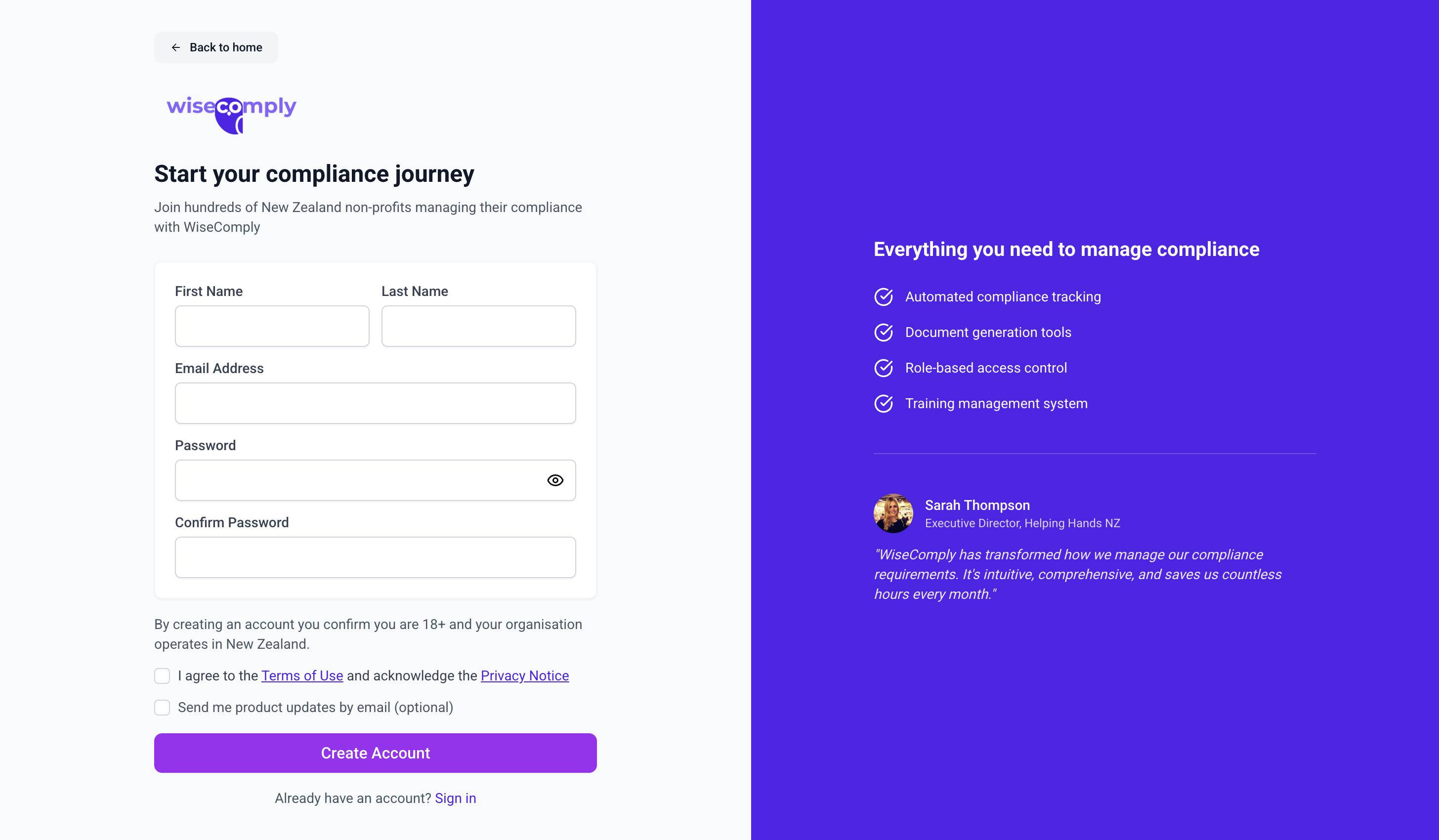
1. Navigate to https://www.wisecomply.co/
2. Click the "Register" button
3. Complete the registration form:
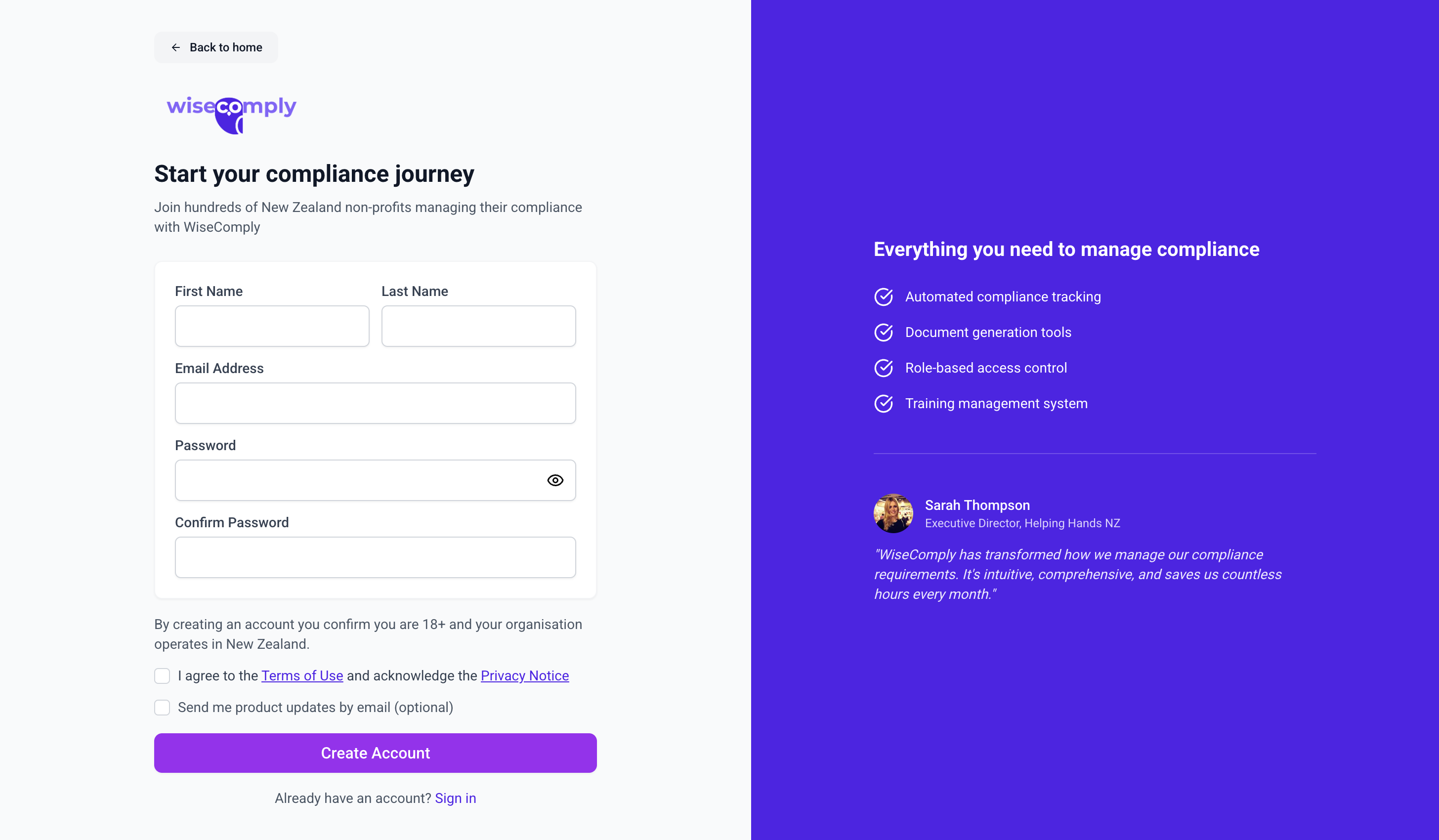
o First Name: Enter your first name
o Last Name: Enter your last name
o Email Address: Enter a valid email address (you'll need access to verify)
o Password: Create a secure password
o Confirm Password: Re-enter your password to confirm
4. Click "Create Account" button
5. You'll be taken to the email verification screen
Note: If you already have an account, click "Sign in" link at the bottom of the page instead.
About Passwords:
· Choose a strong, unique password for security
· Password must meet minimum security requirements
· You can reset your password later from Account Settings
· Keep your password secure and don't share it
Step 2: Verify Your Email
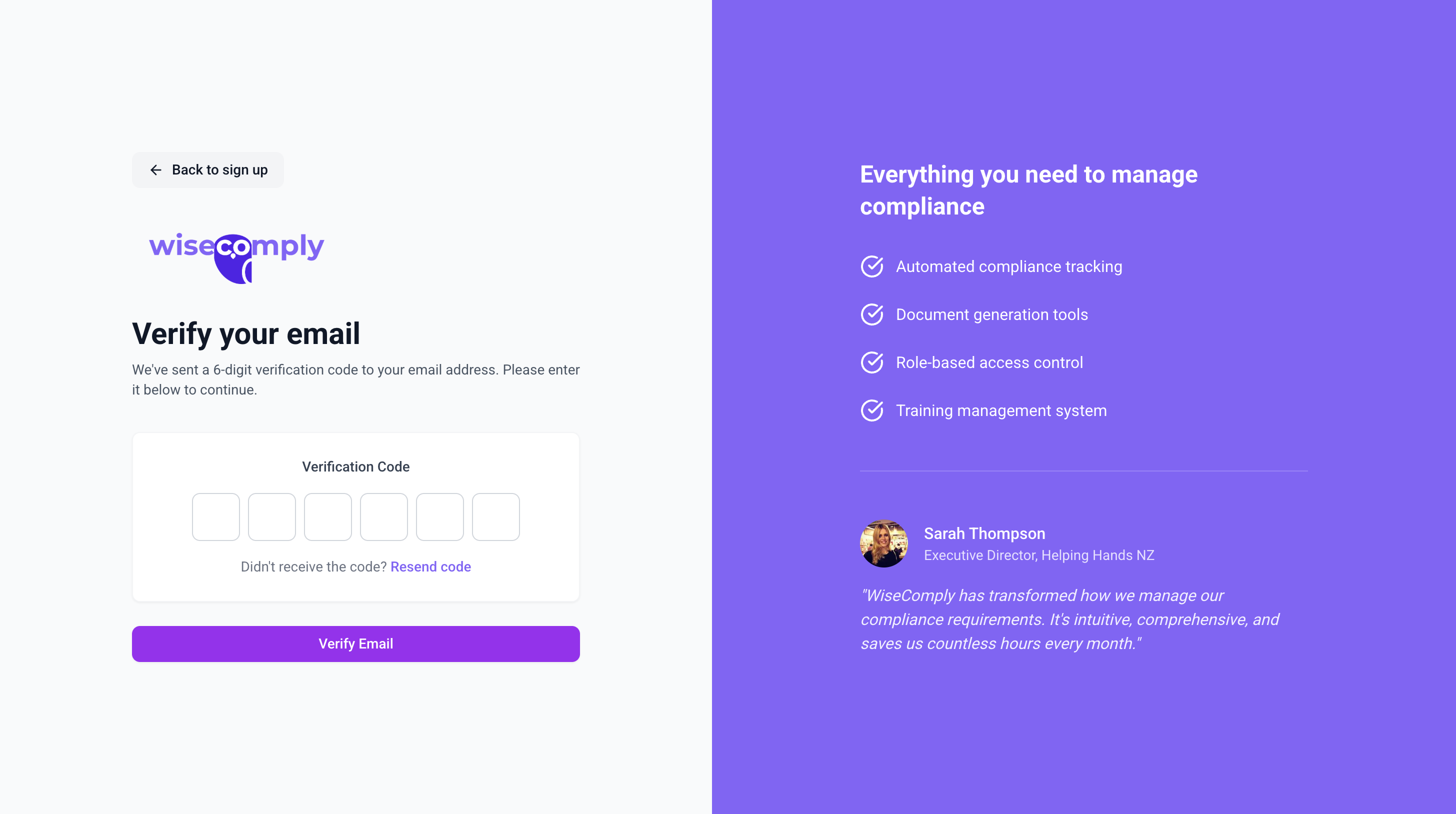
1. Check your email inbox for a message from WiseComply
2. Find the 6-digit verification code in the email
3. Enter the code into the six boxes on the "Verify your email" screen
4. If you didn't receive the code, click "Resend code" link
5. Click "Verify Email" button
6. Once verified, you'll proceed to the Setup Wizard
Important to Know
About Email Verification:
· You must verify your email before accessing WiseComply
· The 6-digit code is sent immediately after registration
· Codes typically expire after a set time period
· You can request a new code if needed
Tip: Check your spam or junk folder if you don't see the verification email within a few minutes.
Step 3: Complete the Setup Wizard
After email verification, you'll be automatically directed to the Setup Wizard. The wizard asks questions about your society to configure WiseComply properly. Refer to the Setup Wizard help guide for detailed information about each question.
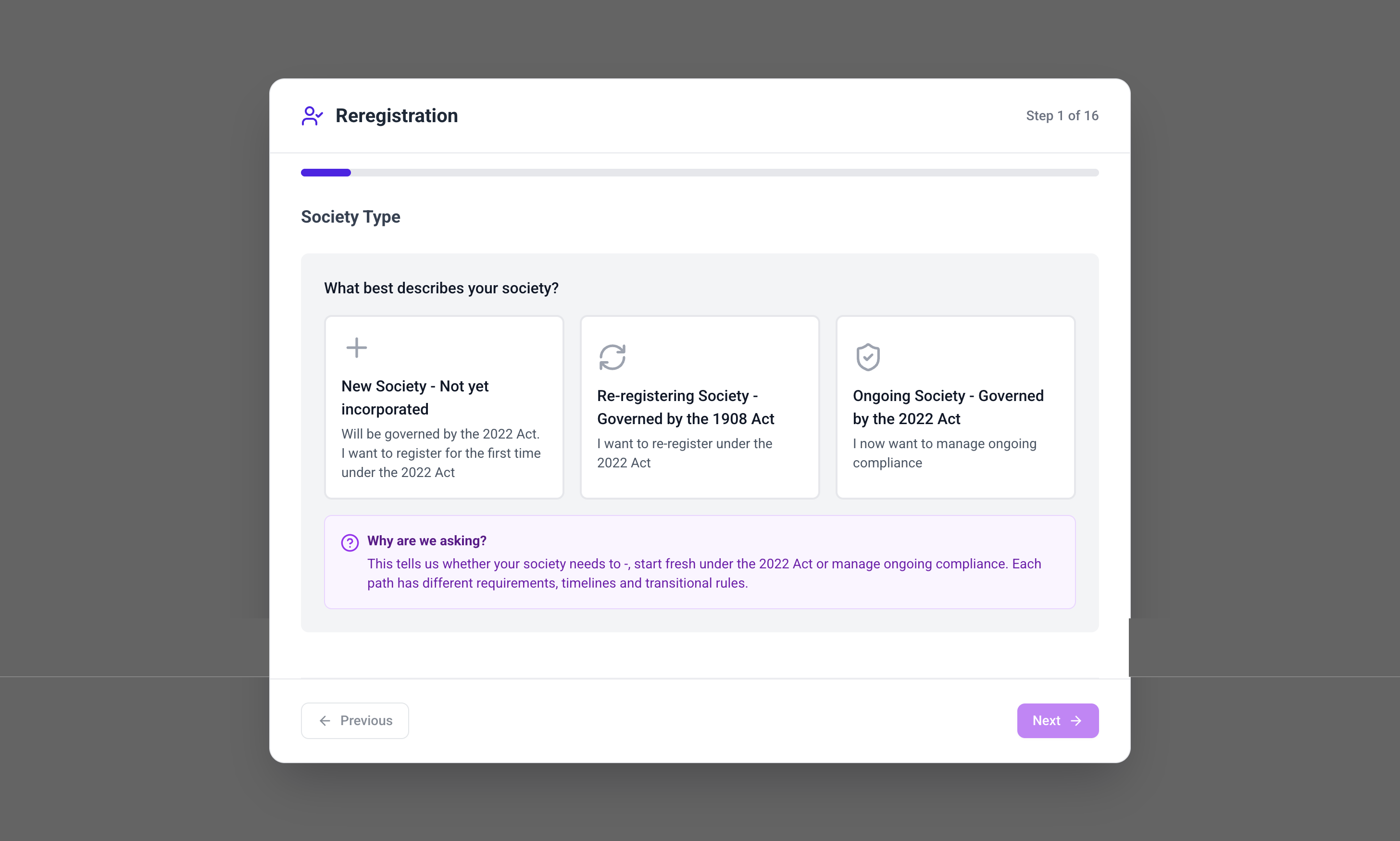
About the Setup Wizard:
· Must be completed before accessing main WiseComply features
· Have basic society information ready
· You can change answers later through Society Profile
· Takes approximately 1 minute to complete
Step 4: Access WiseComply
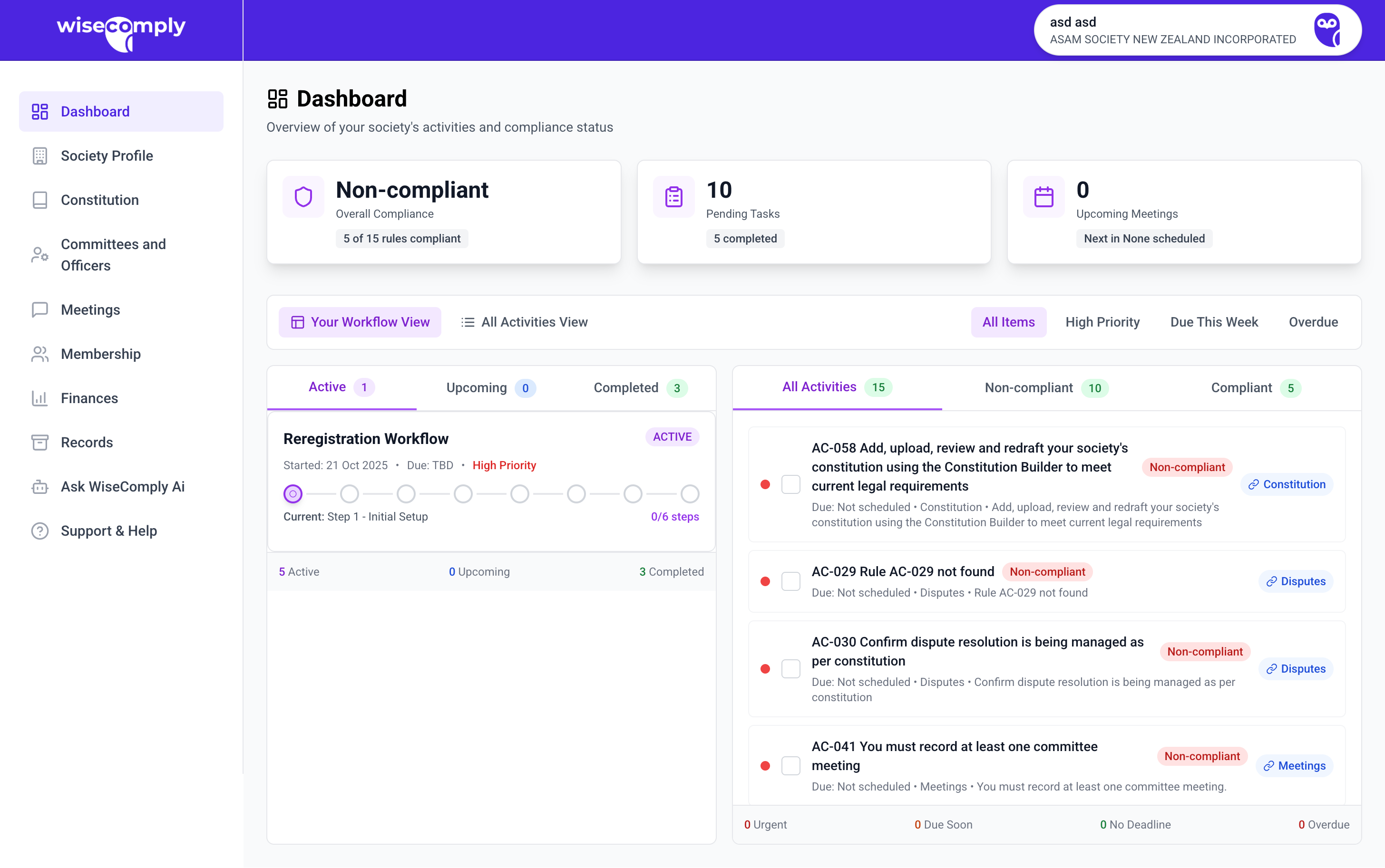
Once the Setup Wizard is complete, you'll be taken to the Dashboard where you can begin managing your society's compliance requirements.
Common Questions
What if I don't receive the verification code? Check your spam/junk folder first. If still not received, click "Resend code" on the verification screen. Ensure you entered the correct email address during registration.
Can I use the same email address for multiple societies? No, each email address can only be registered to one WiseComply account. Use different email addresses if managing multiple societies.
What if I enter the wrong verification code? You can try again. After multiple failed attempts, you may need to request a new code using "Resend code."
Can I change my email address after registering? Yes, update your email address in Account Settings after logging in. You'll need to verify the new email address.
What if I make a mistake during registration? If you haven't verified your email yet, you can start over by going back to the homepage and registering again with correct details. After verification, update details in Account Settings.
Do I need to complete the Setup Wizard immediately? Yes, you must complete it before accessing WiseComply features. However, you can take breaks if needed—your progress should be saved.
What if I'm not sure how to answer Setup Wizard questions? Choose the best answer based on what you know. You can change answers later through Society Profile. Consult with your committee for important decisions.
Can multiple people from our society register? Yes, but typically one person registers and completes the initial setup. Additional users can be invited or added later by the administrator.
Troubleshooting
Problem: Verification email not arriving
· Check spam/junk folder
· Wait a few minutes—delivery can be delayed
· Click "Resend code"
· Verify you entered the correct email address
· Check email server isn't blocking WiseComply messages
Problem: Password doesn't meet requirements
· Ensure password meets minimum length
· Include uppercase, lowercase, numbers, and special characters if required
· Avoid common passwords
· Make sure password and confirm password match exactly
Problem: "Account already exists" error
· An account with that email already exists
· Try signing in instead of registering
· Use "Forgot password" if you can't remember your credentials
· Use a different email address if needed
Problem: Can't proceed after email verification
· Ensure code was entered correctly
· Try refreshing the page
· Clear browser cache and try again
· Contact support if problem persists
Tips for Successful Registration
· Use a professional email address you check regularly
· Create a strong, memorable password
· Have basic society information ready before starting
· Complete registration when you have 15-20 minutes available
· Use a modern web browser for best experience
· Ensure stable internet connection during setup